

Designing a speech-to-speech assistant
From Audio Input to Spoken Response: Building a Triggerable Assistant with Voxtral and Mistral Small
April 2, 2026
Diogo Alexandre Almeida Costa
Designing a speech-to-speech assistant
Speech-to-speech assistants are among the most complex systems to engineer. They require a delicate balance of maintainability, cost-efficiency, and low-latency fluidity, all while remaining flexible enough for diverse use cases. Below, we discuss everything you need to know about our audio models and how to leverage their capabilities to build real-time assistants.
Our Audio models, also known as the Voxtral family, include a diverse set of models - ranging from audio and text understanding to transcription and speech generation:
- Voxtral Small and Voxtral Mini, our first models with audio input - instruct models capable of understanding both audio and text, with pure text output. Released under an Apache 2.0 license to drive research, commercial, and non-commercial use.
- Voxtral Mini Transcribe, our transcription-dedicated model with audio input and text output. Latest having diarization and word-level timestamps capabilities.
- Voxtral Realtime, an audio-streaming input and text-streaming output model designed for real-time, low-latency use cases. Released under an Apache 2.0 license.
- Voxtral TTS, our first speech synthesis model with voice customization capabilities and output streaming. We also released a safe variant with fixed voices under CC BY-NC 4.0 license, which the model inherits.
Coupled with our extensive family of instruct, vision, agentic, reasoning, and coding models, we can assemble and engineer high-quality speech-to-speech assistants with full control.
Components of the pipeline
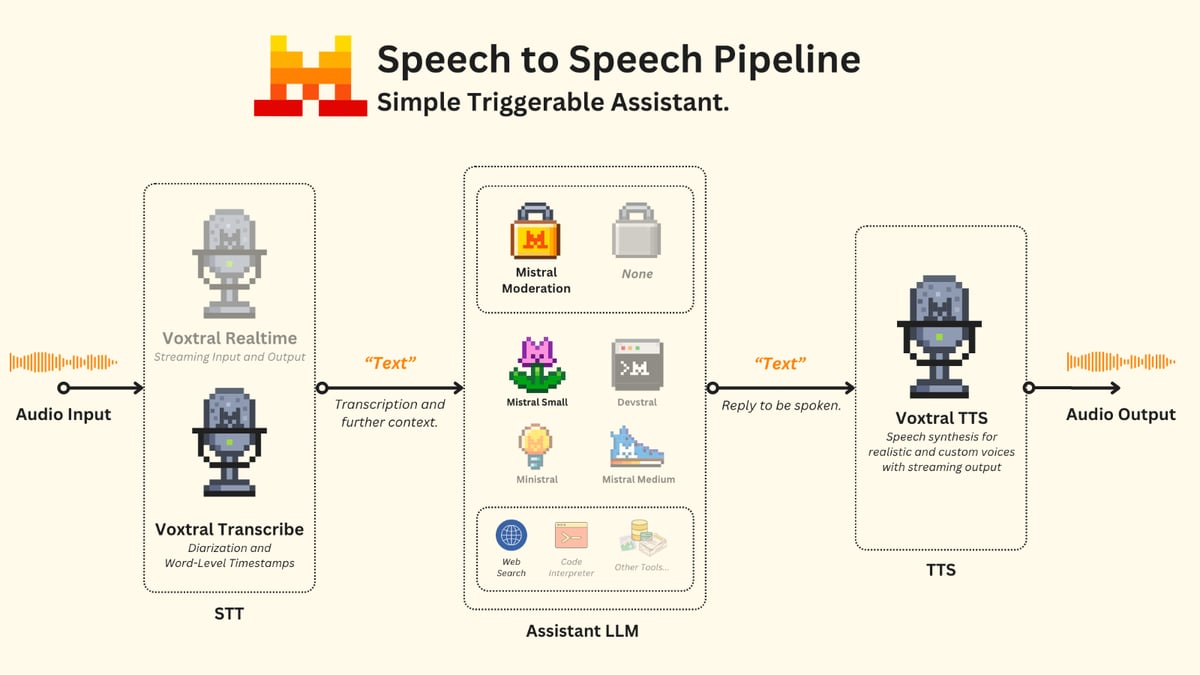
There are three main components to such pipeline:
- Speech-to-Text (Transcription): Understanding and converting audio into structured text.
- Assistant LLM (Agent): The backbone that makes decisions and answers questions, typically handling text input and output. These may include vision-capable models, reasoning models, or specialized models. They can also be given access to tools to extend their capabilities based on the use case.
- A moderation safeguard may be added at this stage for fine-grained control of model behavior, filtering harmful content.
- Text-to-Speech (Voice Generation): Converting the text reply into realistic spoken audio.
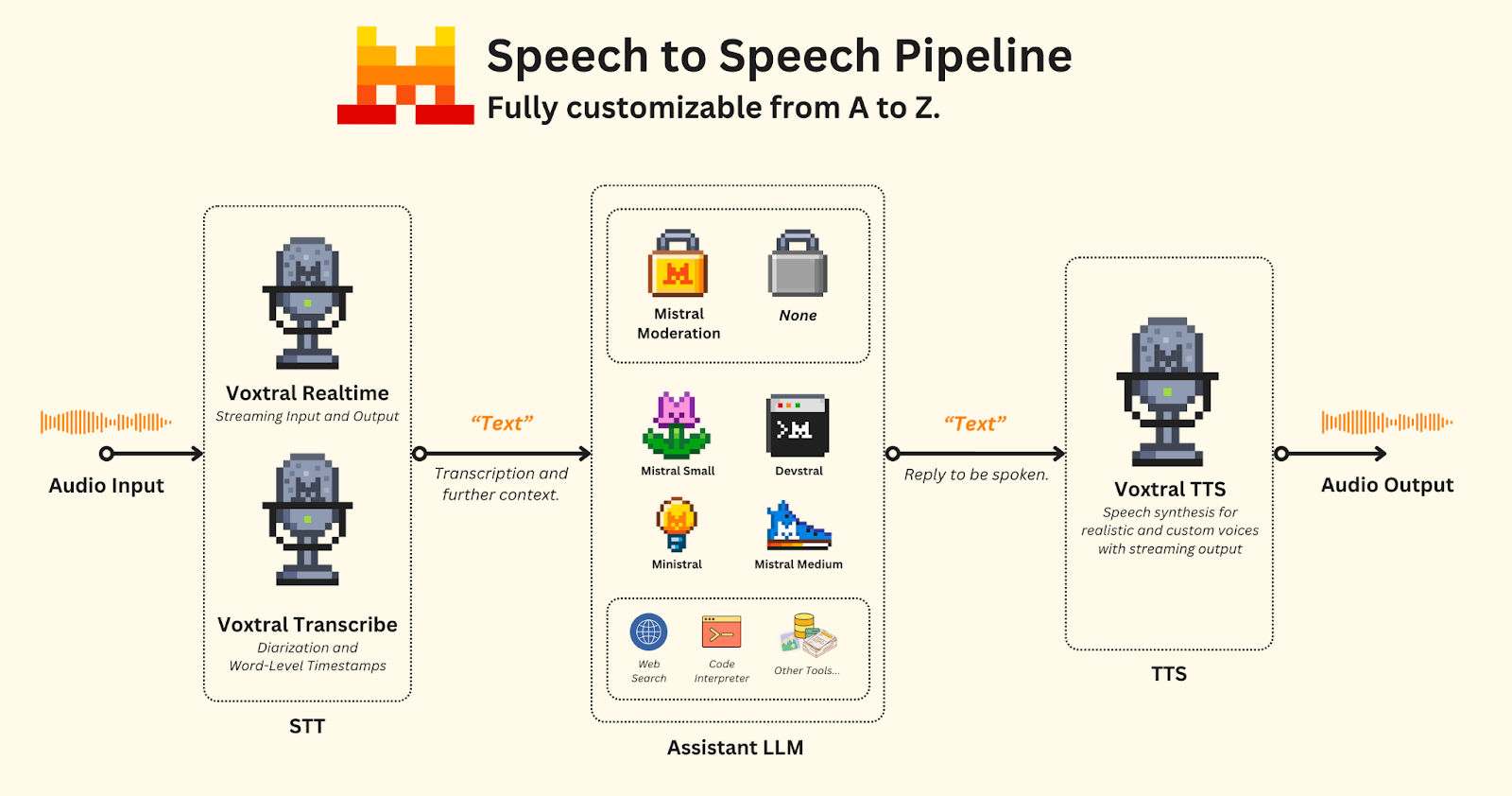
When designing the system, the use case and environment where the assistant will operate must be considered from the ground up. With multiple choices available, your KPIs may drive different routes, requiring a balance between quality, latency, capabilities, and price.
Triggerable assistant
As a first step, let's focus on a triggerable assistant. Its role is to wait and activate only when triggered via a keyboard shortcut. Among the models shown above, we will make use of the following:
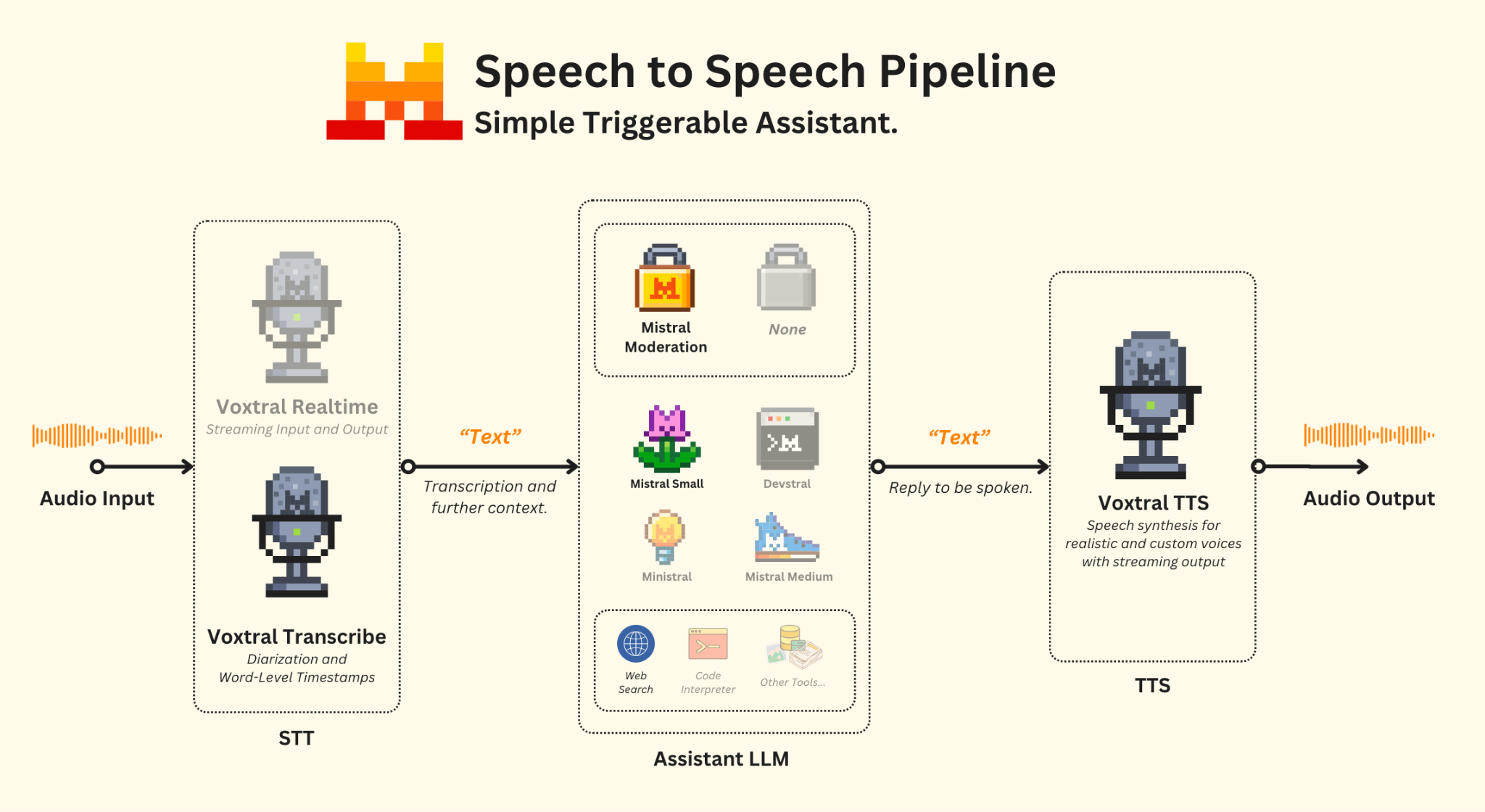
To make this work, we will set the models accordingly:
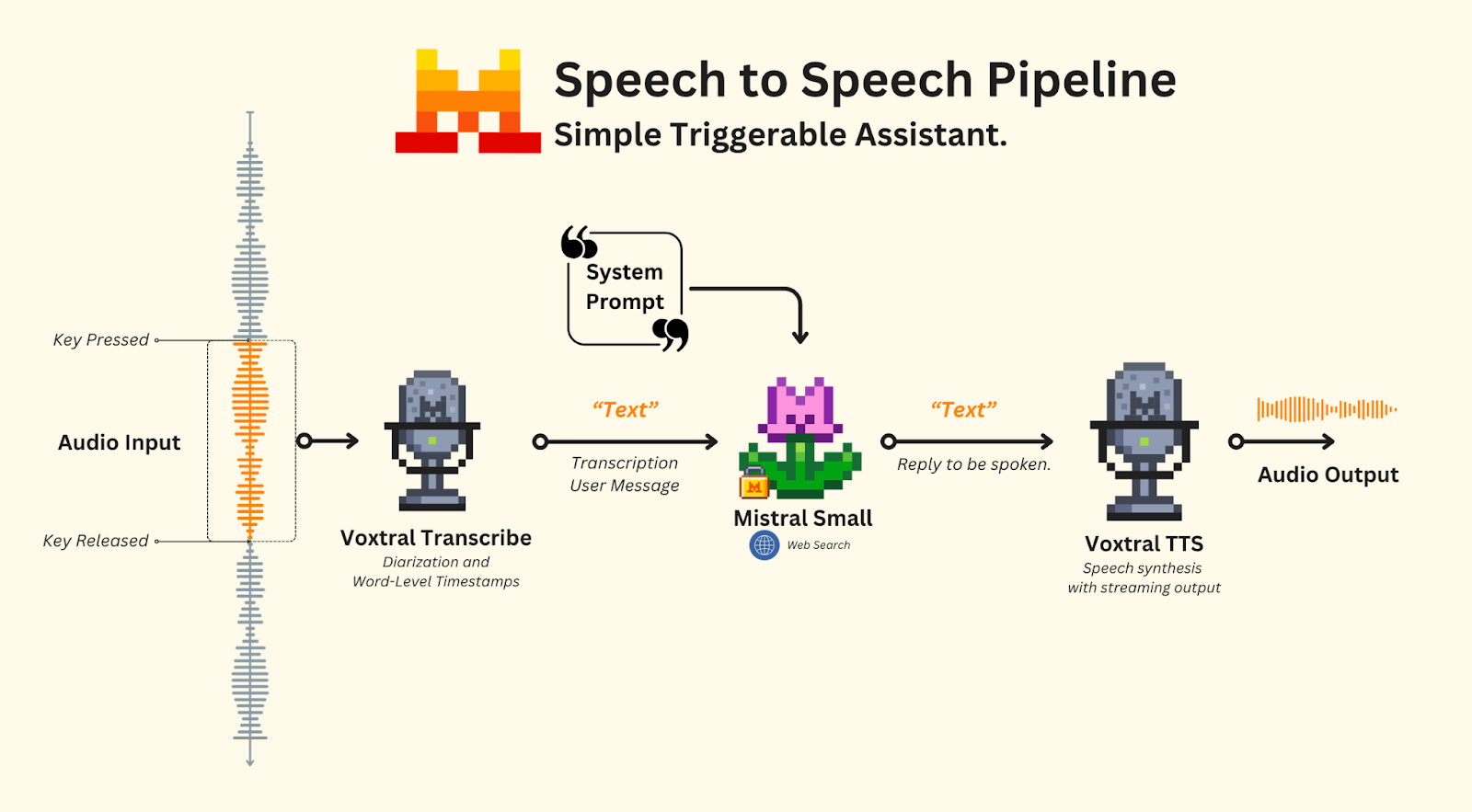
- Transcription: We will use Voxtral Transcribe, as real-time transcription is not required.
- Audio Segmentation: Based on user interaction: recording starts when the user clicks a specific button and stops when the button is clicked again.
- Assistant LLM: Powered by Mistral Small, which is fast and agentic - capable of efficiently performing searches to provide answers with a web search tool, a system prompt will explain the context, inputs and its objective.
- Moderation (optional): A safeguard step to ensure safe exchanges.
- Speech Generation: Handled by Voxtral TTS, using a neutral voice from our list of provided voices on AI Studio. Here, we will select Jane (Neutral) with streaming output.
Speech-to-text
Handling audio is delicate. In this example, we assume the assistant is triggered manually, such as via a keyboard shortcut or button press and that all speakers are on the same audio channel, such as in a meeting room.
Note: This may not always be the case. When managing online meetings, it’s possible you may want to split each audio channel into its own transcription pipeline to optimize speaker identification and quality, or use VAD as the trigger for the assistant.
- Recording starts when the user clicks the button.
- Recording stops when the button is clicked again.
- Recording is sent to Voxtral Transcribe.
For this example, we will make use of pynput, sounddevice, numpy, queue, scipy and of course mistralai - and we will design a simple
on_press detection script that triggers different events when specific keystrokes are activated.Note: On macOS, you may need to grant your IDE or terminal Input Monitoring permissions and adjust your accessibility settings to disable warnings for pynput to listen to keystrokes.
Once our keystroke detection is ready, we will be able to listen for when the user toggles Right Shift to start recording and stops recording when it is clicked a second time. However, this does not handle transcription yet. We provide the following method via our SDK and API to transcribe audio files:
This will send our audio file to Voxtral Transcribe and return the transcription. For this demo, we will also provide diarization and segment-level timestamp information to our LLM. For this, we can set the
diarize and timestamp_granularities parameters:The transcription will have the following format:
Once implemented together with our key-pressing detection, the interaction will look like this:
For further information on how to use Voxtral Transcribe and Voxtral Realtime, visit our documentation .
Assistant LLM
Once the transcription is received, we will send it as a user message to our assistant powered by Mistral Small. For this, we need to provide a system prompt with instructions explaining its role, as well as the tools it has access to - in this case, web search.
We will use our Agents & Conversations API with a built-in web search tool. The first step is to create our agent. Let’s define a simple system prompt instruction, our tools, and settings:
This will create our agent. We can start a conversation with:
Using our Conversations API, we can actually track the full history of exchanges via a
conversation_id without the need for us to handle it on our end. A full Conversations API-powered multi-turn exchange can easily be set up.Before moving to our TTS step, don’t forget to adapt your original STT snippet to add our assistant powered by our Agents and Conversations API. Once running, it will look as shown below:
Moderation (optional)
Optionally, you may want to have some guardrails and minimal moderation to control model behavior over hurtful content. We provide Mistral Moderation, capable of handling 11 different categories. Via our Conversations API, we have a built-in inline moderation feature you can leverage:
Text-to-speech
Last but not least, we will tackle the text-to-speech section. To use our TTS model via our AI Studio
gb_jane_neutral , but you may pick a different one or even create your own via customization with a reference audio.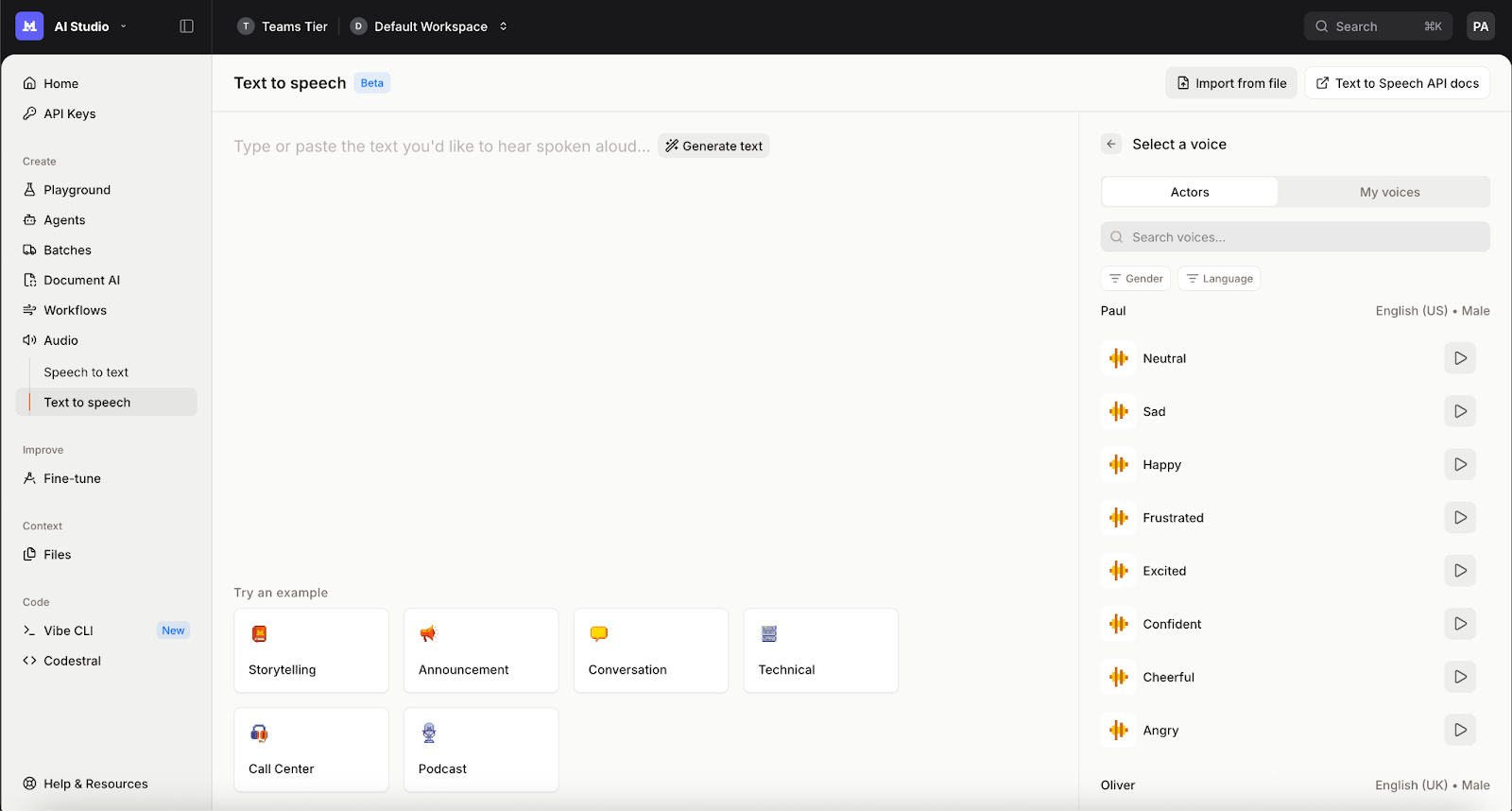
You can either wait for the full synthesized audio or stream the output as it is generated. A simplified script to use our TTS model followed by automatic local audio play with streaming would look like this:
Generating speech for the provided text using the specified voice. In this case, we requested the audio in PCM format and streamed it. The audio is queued and played as it is received until the queue is empty.
Speech-to-speech
Once all pieces are put together and running, the output with a multi-turn interaction will look like this:
Comments (0)
Popular

Dive in
Related
Video
Build a Document Processing Workflow in Less Than 30 Minutes
By Jen Person • Jun 4th, 2026 • Views 426
Video
Build a Document Processing Workflow in Less Than 30 Minutes
By Jen Person • Jun 4th, 2026 • Views 426